askmyglucose / picture guide
Once your sensor is linked, open the skill with “Alexa, open my glucose” and then ask — or say it in one line, like “Alexa, ask my glucose what’s my blood sugar.”
Good to know: only readings from the last hour count as “current”; older ones are read with their age. A low (under 70) adds a caution, and it always says whose reading it is.
The login you enter depends on your brand, and the two work differently. For FreeStyle Libre: enter your LibreLinkUp account — a separate follower account on a different email than your main Libre app. For Dexcom: enter your own Dexcom account — the same login your sensor reports to. You only turn Share on (with any follower added as the switch); you do not enter a follower’s login. Pick your brand below for the exact steps.
A second email comes up either way (any free email works) — but its role differs: for FreeStyle Libre it’s the LibreLinkUp follower account you actually log in with; for Dexcom it’s just a follower you invite to flip sharing on — you still log in with your own Dexcom account.
Following more than one person in LibreLinkUp? When you link, we’ll ask which person this account is for — and we always read that person, no matter who is selected in the LibreLinkUp app. If linking says Abbott needs you to accept updated terms, open LibreLinkUp, accept the new Terms of Use, then try again.
FreeStyle Libre — link in 4 steps
On the phone that scans the sensor, open the Libre app: Menu → Connected Apps → LibreLinkUp → Add follower. Enter your second email address.
Install the LibreLinkUp app (same phone or a different one). Create an account with that second email, then accept the invitation that appears.
Open LibreLinkUp once and make sure the glucose reading shows. If LibreLinkUp can see it, so can we.
On our link-your-sensor page, choose FreeStyle Libre and enter the LibreLinkUp email and password. We check it live and show you your real number.
Want Abbott’s own screenshots? See the official LibreLinkUp guide and the LibreLinkUp user manuals.
Actual screens, in order. On the wearer’s phone you invite the caregiver; on the caregiver’s phone they sign in with that same email — and that follower login is what you enter in Ask My Glucose.
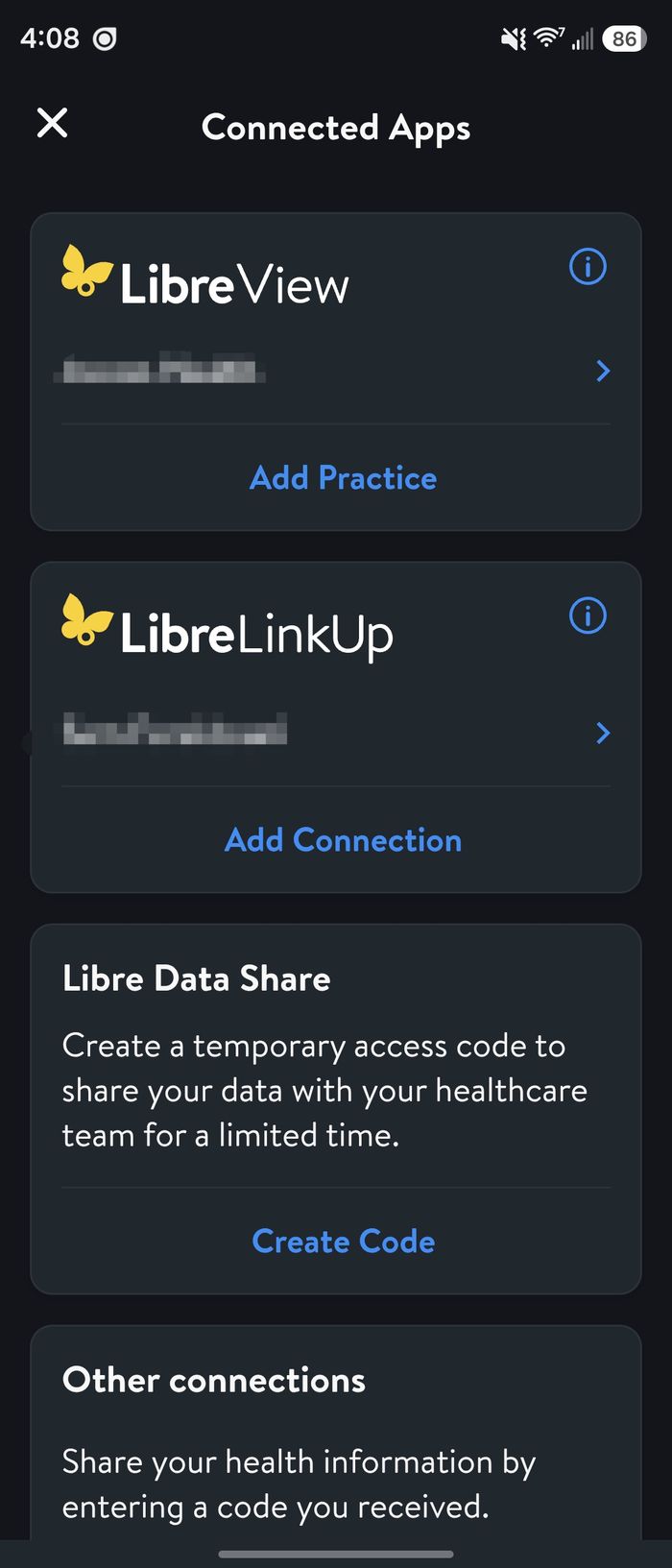
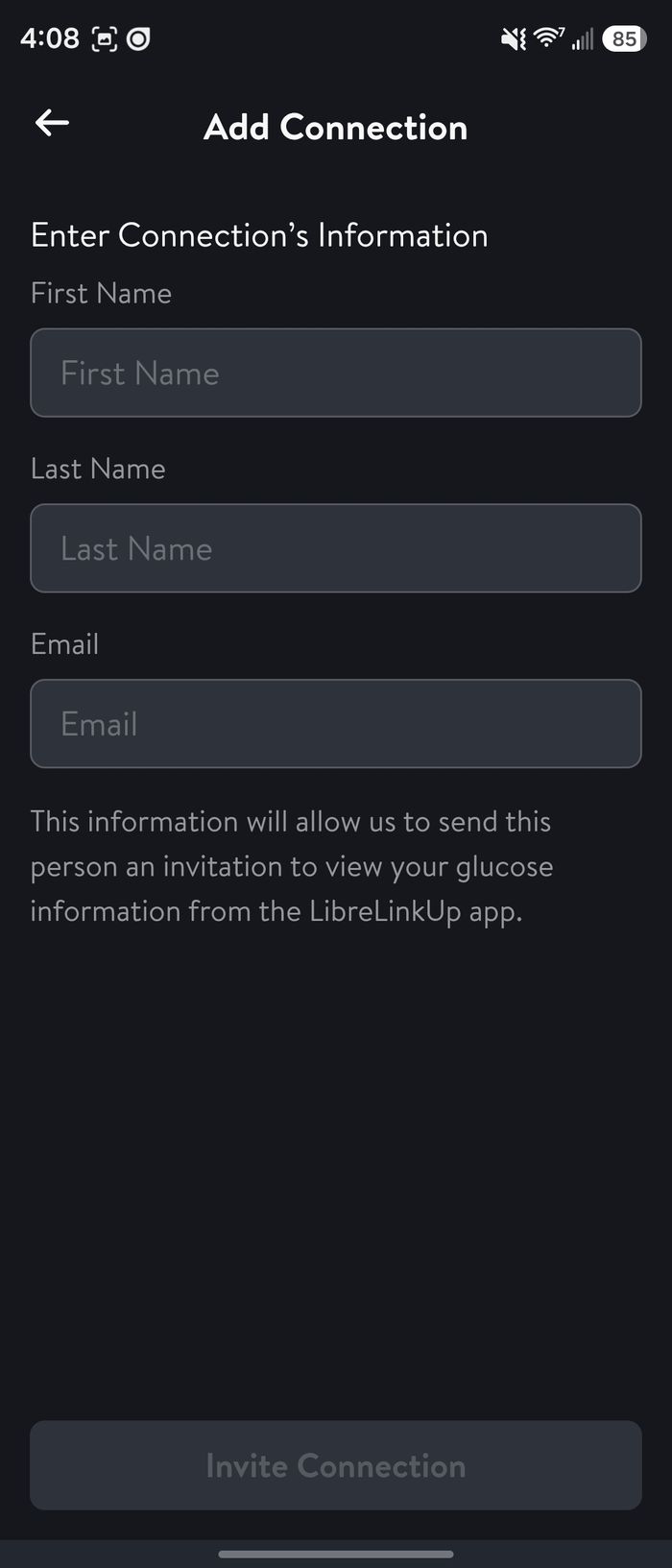
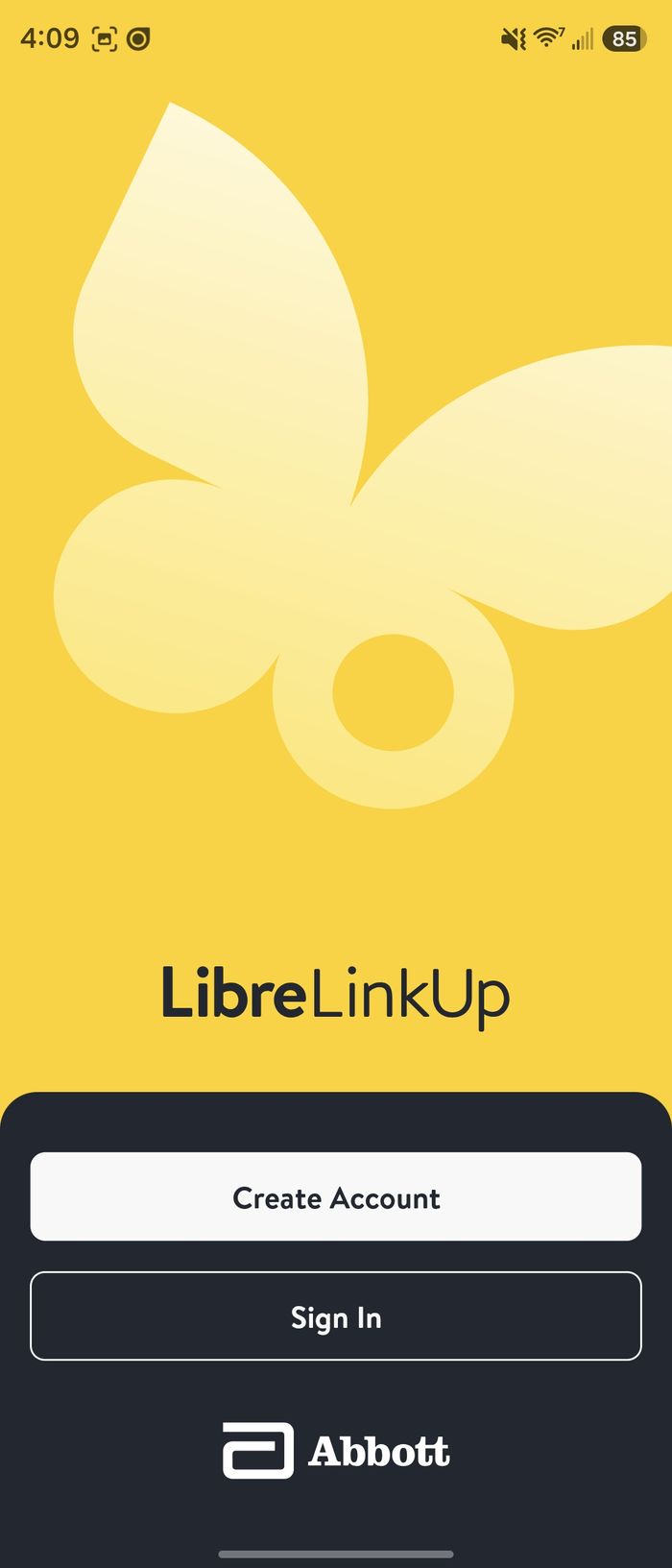
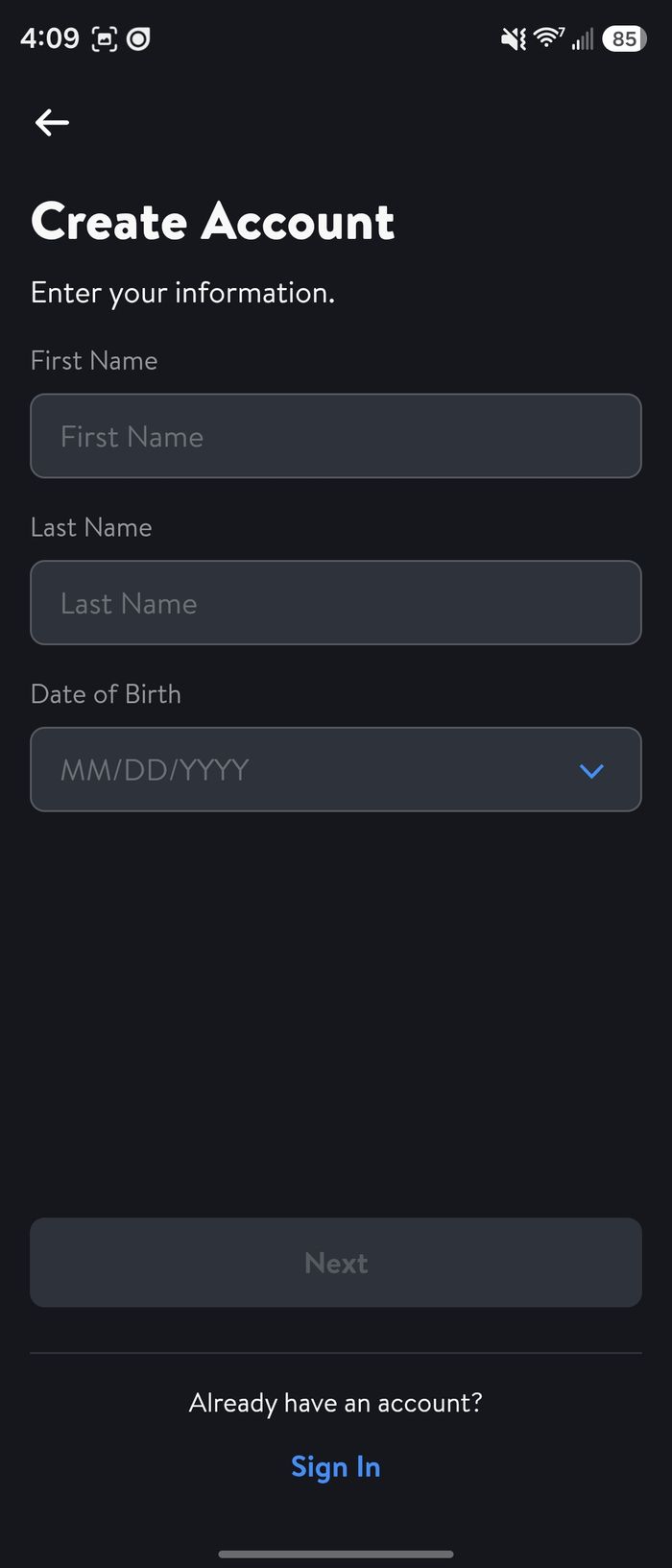
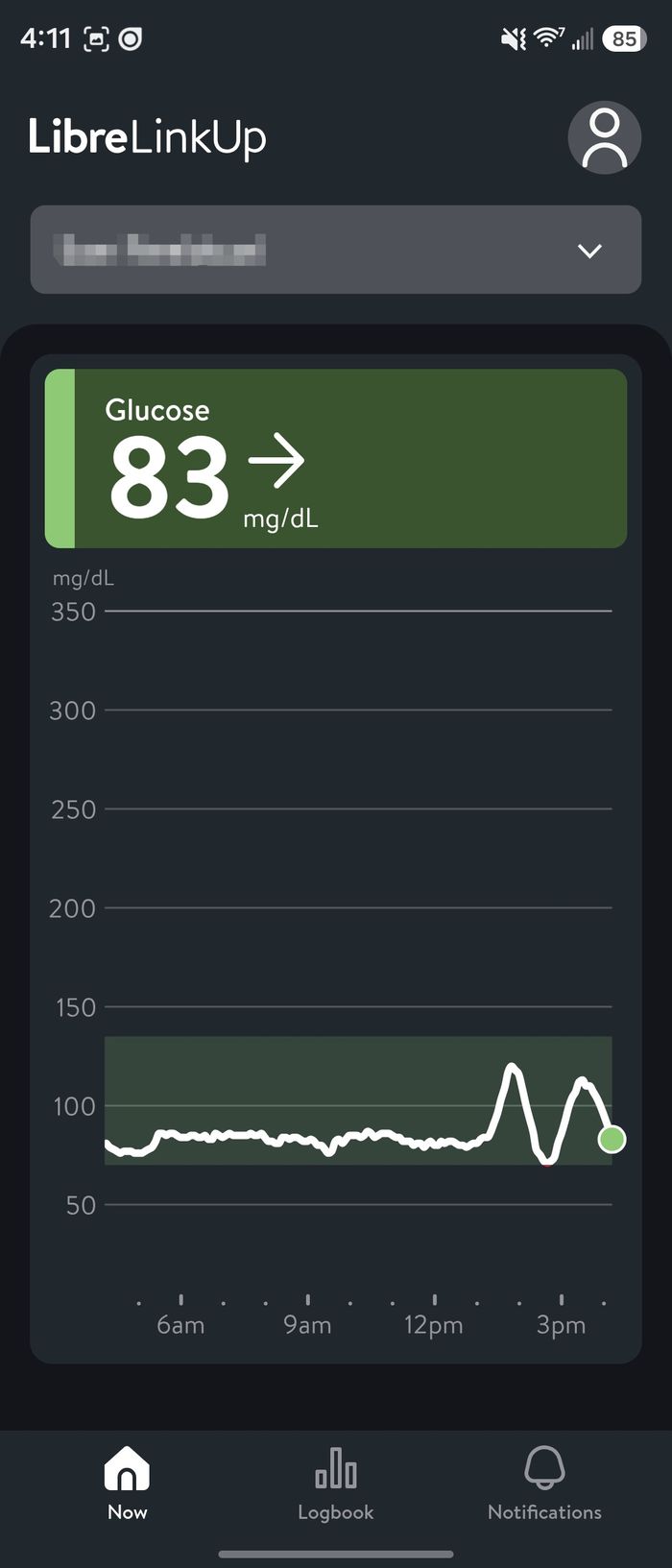
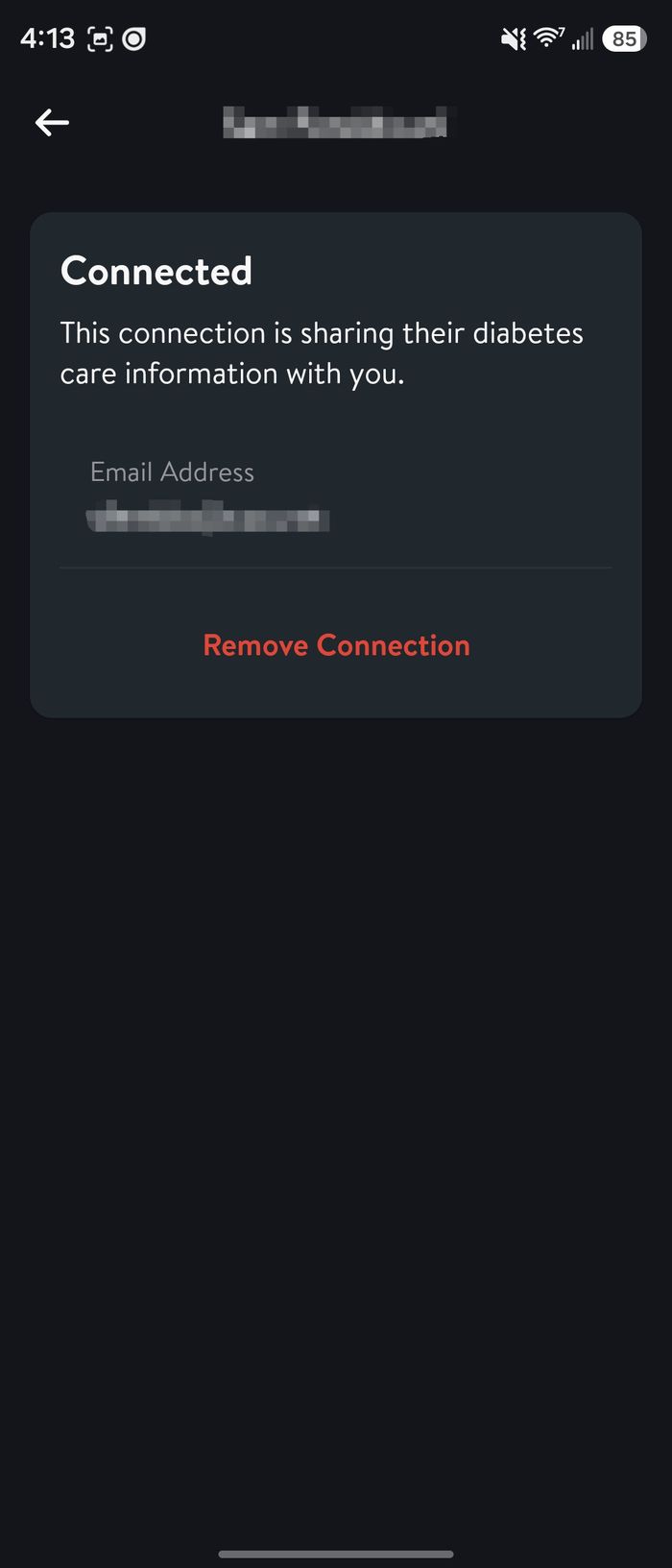
Real screenshots with personal details blurred. FreeStyle Libre and LibreLinkUp are trademarks of Abbott; Ask My Glucose is not affiliated with or endorsed by Abbott.
Dexcom — link in 5 steps
In the Dexcom G6/G7 app on the phone your sensor reports to, open Connections (or Share) and turn Share ON.
Invite at least one follower (any email works). This is only the switch that activates sharing — you will not enter the follower’s login. Accept the invite in the Dexcom Follow app if it prompts you.
Back in your Dexcom app, the status should read Share Working with at least 1 follower Active.
On the link page, enter your own Dexcom account login — the exact same one you use to sign into the Dexcom app — and tap Verify & link.
Want Dexcom’s own screenshots? See the official Dexcom guide to Share & Follow.
Actual screens from the wearer’s Dexcom app — turn Share on, add a follower as the switch, and confirm it’s active. You then enter your own Dexcom account on Ask My Glucose (never a follower login).
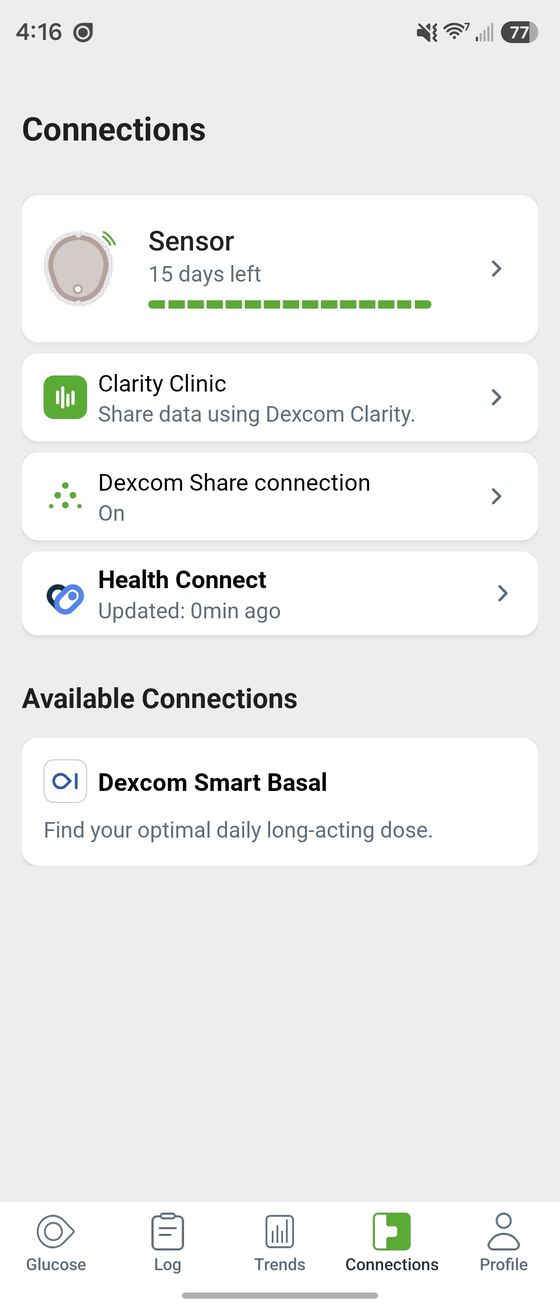
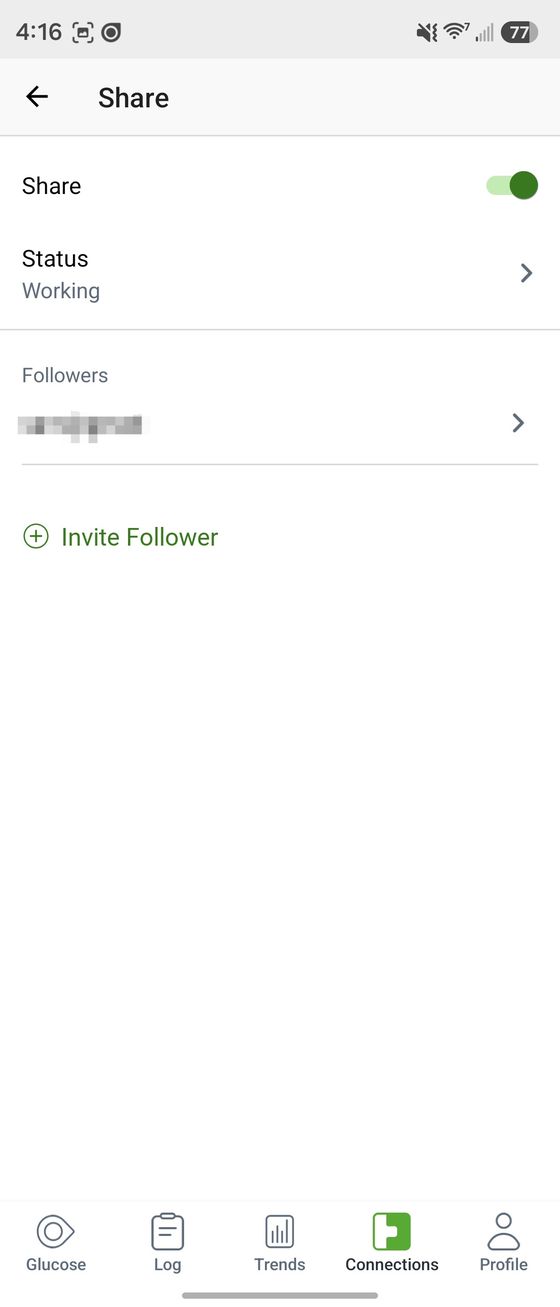
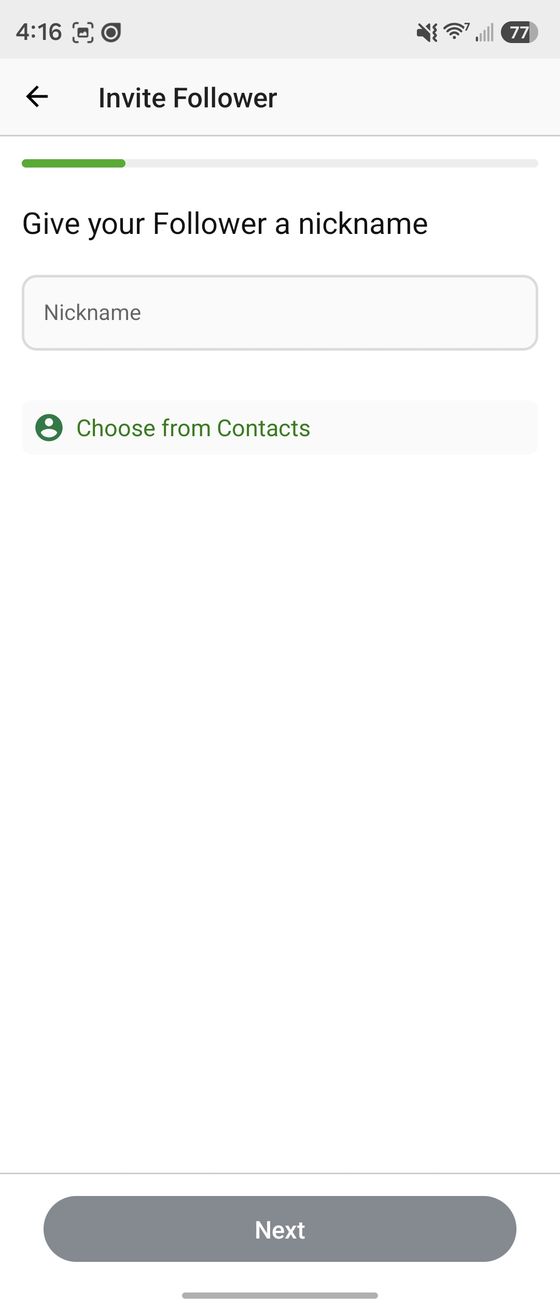
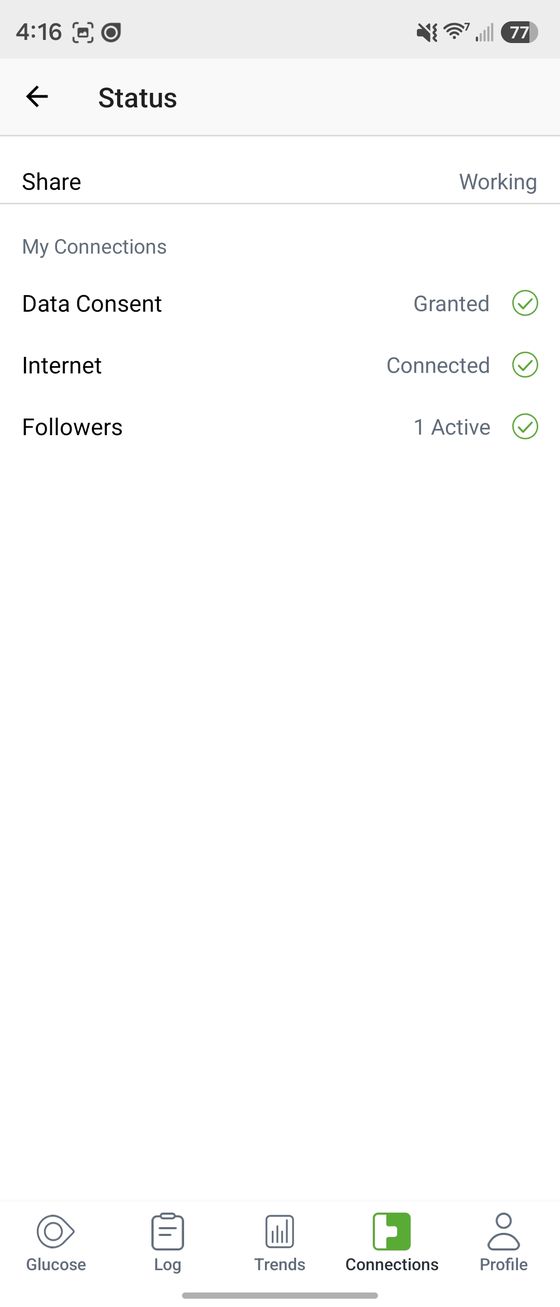
Real screenshots with personal details blurred. Dexcom, Dexcom G7 and Dexcom Follow are trademarks of Dexcom, Inc.; Ask My Glucose is not affiliated with or endorsed by Dexcom.
• The login must match your brand: FreeStyle Libre → your LibreLinkUp (follower) login; Dexcom → your own Dexcom account login (the one your sensor reports to, with Share on). “Login didn’t work” almost always means the wrong one for your brand was entered.
• Passwords with symbols like % can be rejected by the sharing services even when the app accepts them — try letters and numbers only.
• Abbott and Dexcom occasionally have sharing outages — wait a few minutes and try again.
• Type the password by hand if pasting fails — some password managers add an invisible space at the end.